Primavera P6 reporting and control, right inside Excel
PlanTricks turns your XER files and P6 database into progress reports, S-curves, dashboards and 4D, and adds an AI co-planner that proposes schedule changes you approve before anything is written.
Why planners use it
From the XER to the report your manager asked for
The weekly work of a planning team, done in Excel with the files you already export from P6.

Report in minutes
Baseline, update and recovery XERs become activities, progress, SPI, cash flow, manpower and S-curves in one workbook.

Control the P6 database
Open a project from P6 Professional, edit it in sheets, schedule with F9 and write back, with undo.

Ask your schedule
Planned %, actual %, forecast finish or a change in plain words, with a preview you approve first.
AI co-planner
Talk to your project. Approve every change.
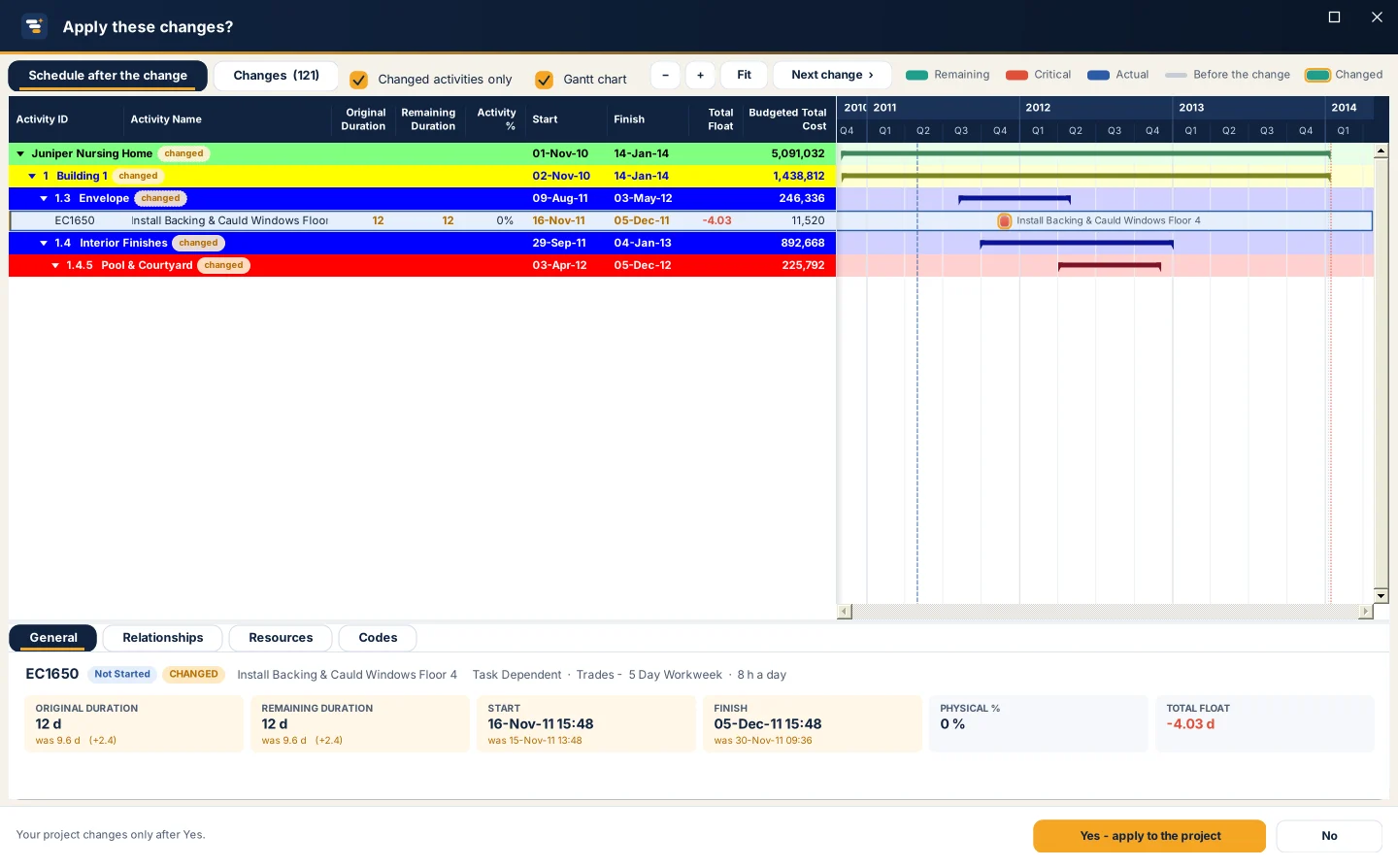
Ask for progress by WBS or type of work, or describe what you need: move a WBS, add days, link activities, build a recovery. The change is tried on a copy and scheduled, then shown as a Gantt of what moved.
- Nothing is written to P6 until you click Yes; Undo restores the project exactly
- Progress, actual dates and baselines stay as they are unless you ask
- No open ends, loops or duplicate links left behind
- Also works from Claude Desktop and Claude Code
Connect AI
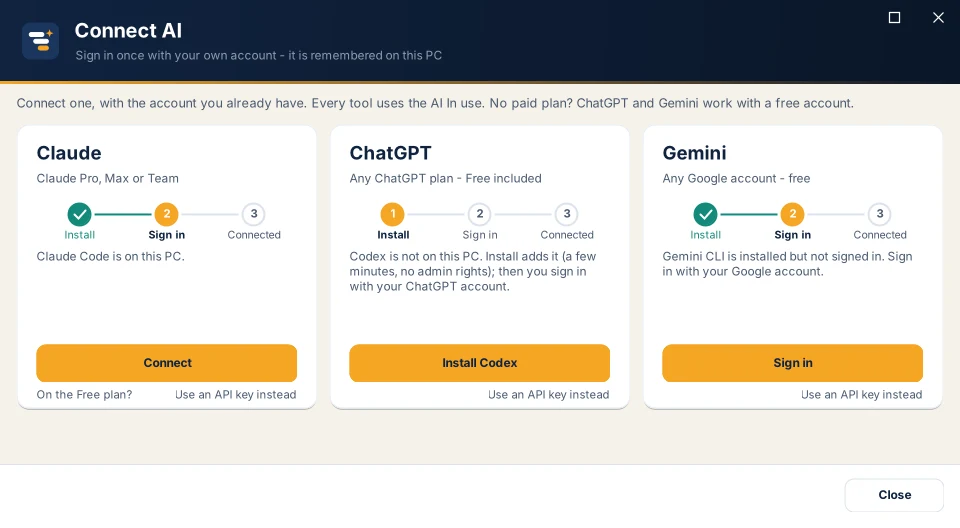
Use the AI account you already have
Sign in once and every AI tool in PlanTricks uses it: Talk to Project, the daily-report reader for disruption claims, and the tools you create yourself.
HTML dashboard
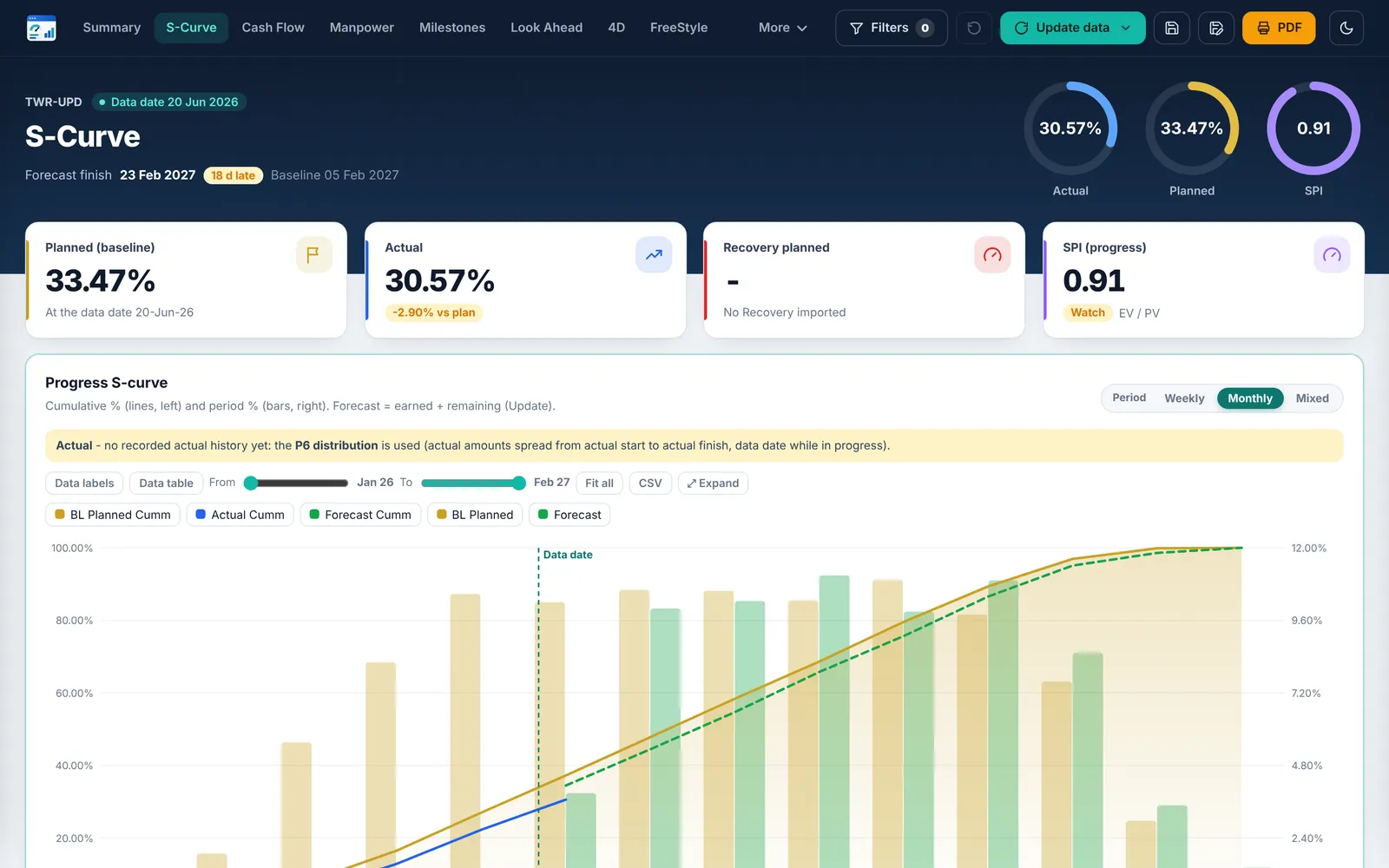
A project dashboard you send as one file
Built from your XERs in a few clicks. It opens in any browser, works offline and keeps its views when saved.
- Executive summary, S-curve, cash flow and manpower
- Look-ahead, milestones and schedule health
- WBS progress with an S-curve for any element
4D simulation
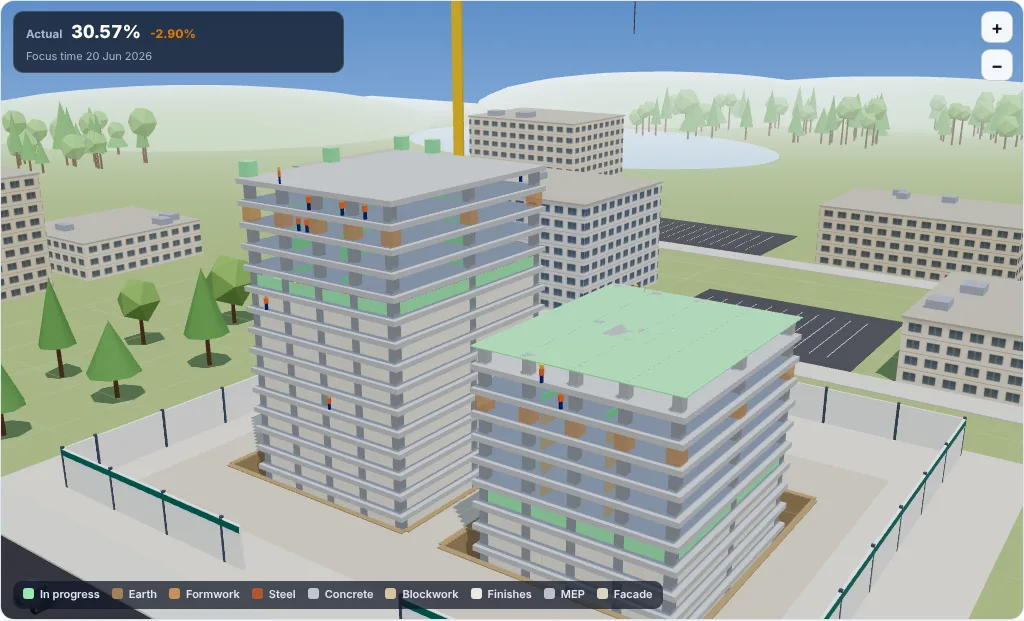
4D from the schedule alone
No BIM model needed. Buildings, floors and zones come from the WBS and activity codes, and every activity appears on site as planned or done, week by week.
- Baseline and actual side by side
- Click a building to see each floor in progress
The ribbon
Every tool a planner needs, one click away
Each tool writes its result into your workbook, a new XER or a single HTML file. No macros to copy and no templates to keep.
Install
Ready in two minutes
Installs for your Windows user only. No administrator rights, and Excel can stay open.
Download and unzip
PlanTricks-OnlineSetup.zip holds a small online setup. The tools arrive with the first update, so you always start on the latest version.
Run the setup
Run PlanTricks-OnlineSetup.exe, read the License Agreement and tick "I accept".
Open Excel
Find the PlanTricks tab on the ribbon. If Excel was open, it appears the next time Excel starts.
Windows may say "Windows protected your PC". Click More info, then Run anyway.
SmartScreen shows this for programs it has not seen often. If your company blocks downloads, ask IT to allow the setup.
FAQ
Questions planners ask
Is PlanTricks really free?
Yes. There is no key, trial or subscription. The License Agreement only protects the software from being copied, resold or rebranded.
Does my project data leave my computer?
XER files and the P6 database are read on your PC and reports are written into your own workbooks. Only when you use an AI tool is the part it needs sent to the AI you connected, under your own account.
Can the AI damage my schedule?
Changes are tried on a copy and shown as a preview first. Nothing is written before you click Yes, progress is left alone unless you ask, and Undo restores the project exactly.
Which AI do I need?
One of Claude (Pro, Max or Team), ChatGPT (any plan, Free included) or Gemini (any Google account). Connect AI installs and signs in the app for you, without administrator rights.
How do updates work?
New versions download in the background and install the next time Excel starts. You can also use Check for Updates on the ribbon.
How do I remove it?
Windows Settings, Apps, PlanTricks, Uninstall. Your workbooks and P6 data are not touched.
License
Free to use, under a license
You accept it in the setup before PlanTricks installs. In short:
- Use it at work and on commercial projects, at no cost
- Your project data and your reports stay yours
- No copying, sharing or reselling the setup files
- No opening, modifying or reverse engineering the code
- No renaming it or packaging it as your own product
Start with PlanTricks today
Free for planners and project controls teams. One setup for Excel on Windows.